How an Author Can View Book Reviews
This guide provides step-by-step instructions on how an author can easily view book reviews. By following these simple steps, authors can gain valuable insights into reader feedback and understand how their books are being received. Please note we are showing two different ways to get to the reviews.
Customer Support | 11 steps | 2 Minutes
Click "logo" to get to the home page after you sign into your account."
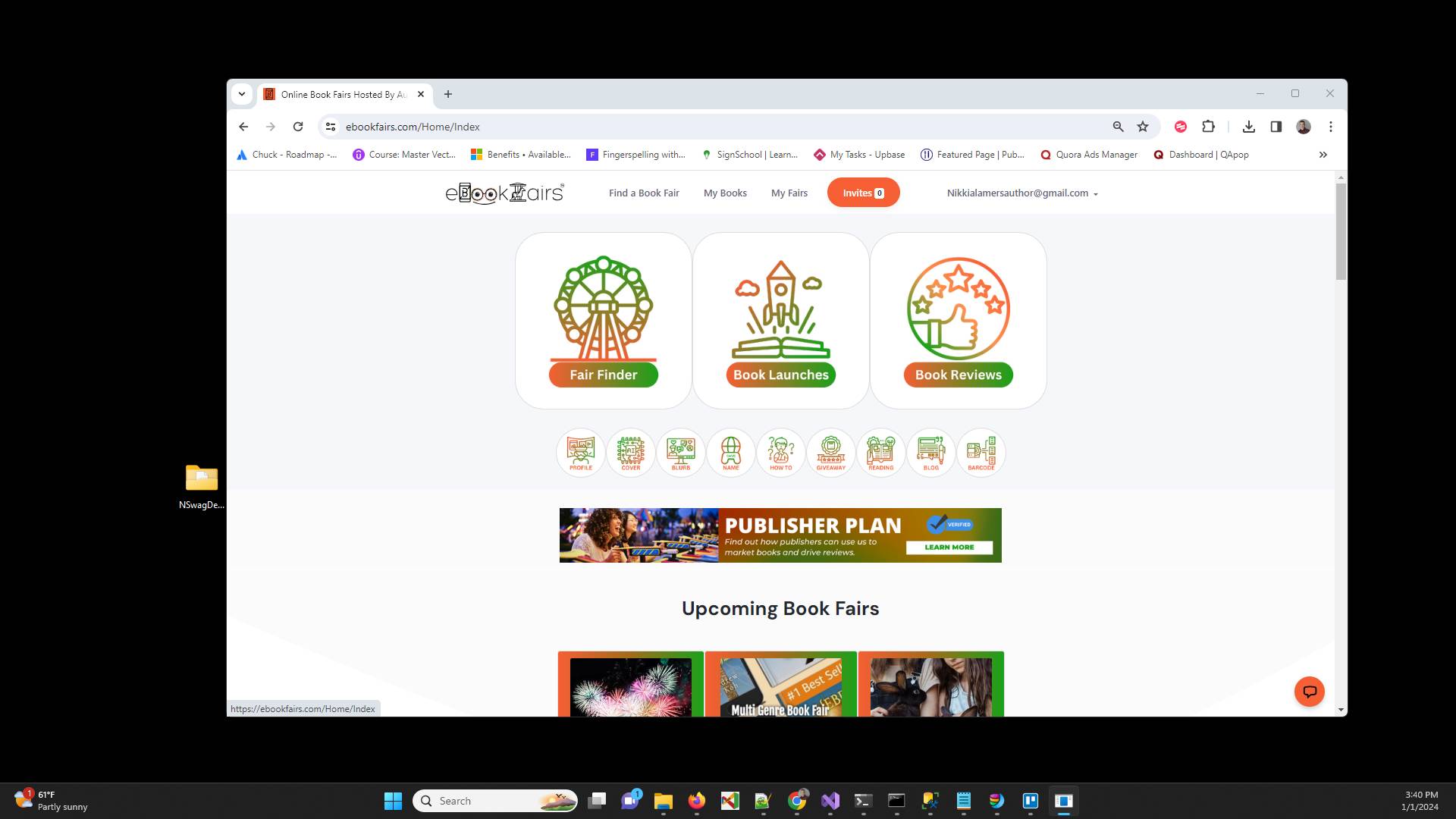
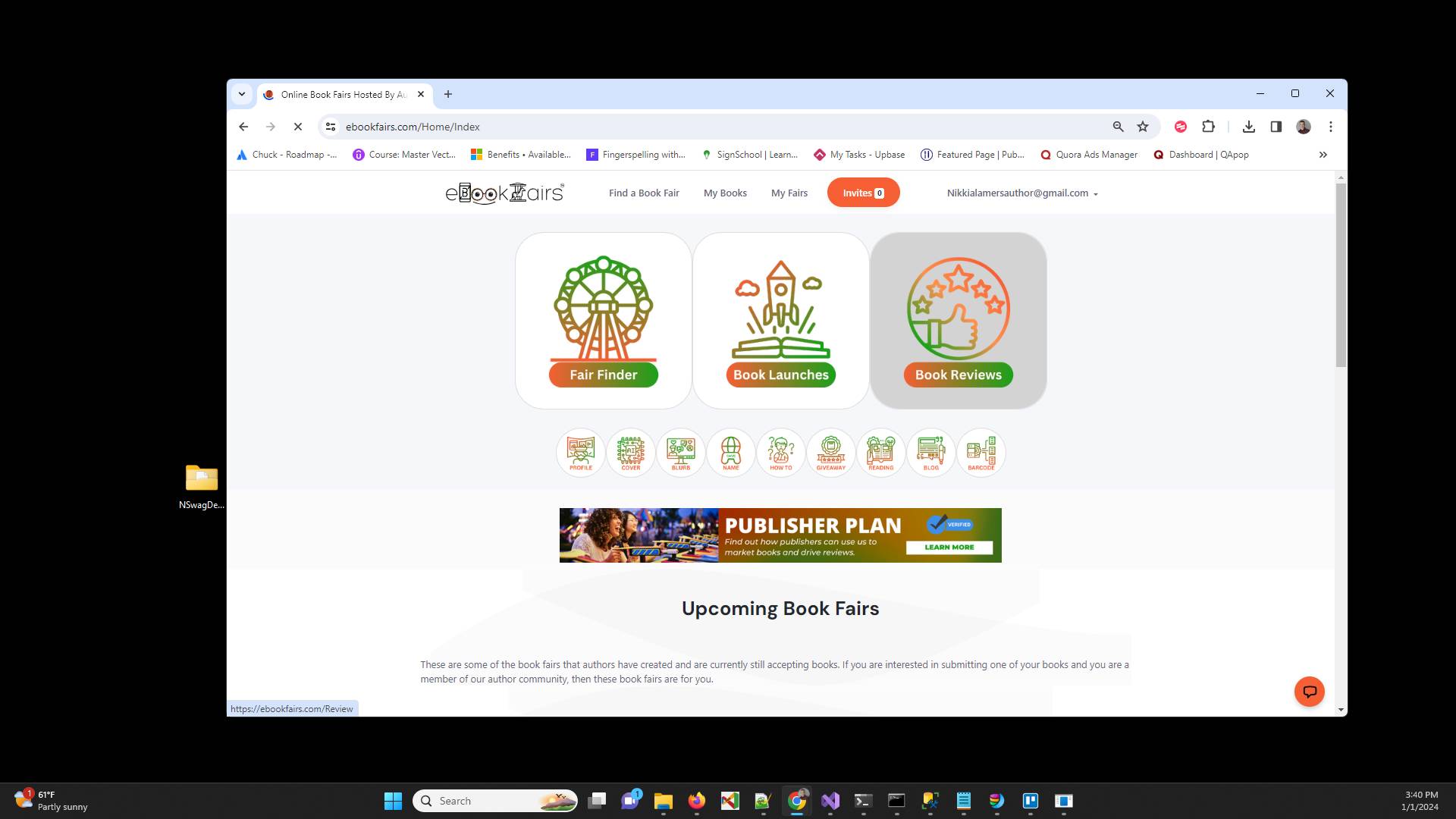
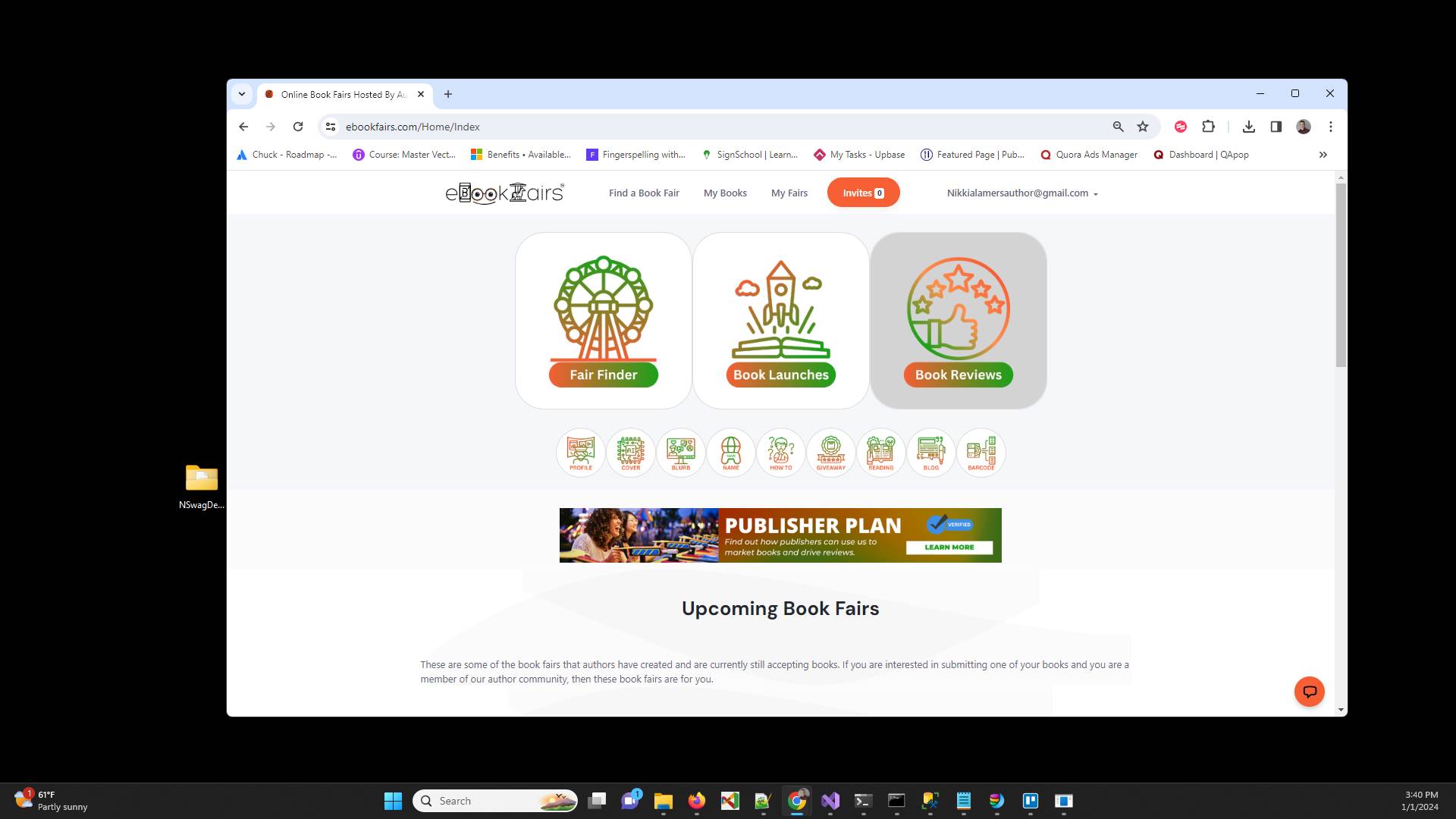
Click on Book Reviews
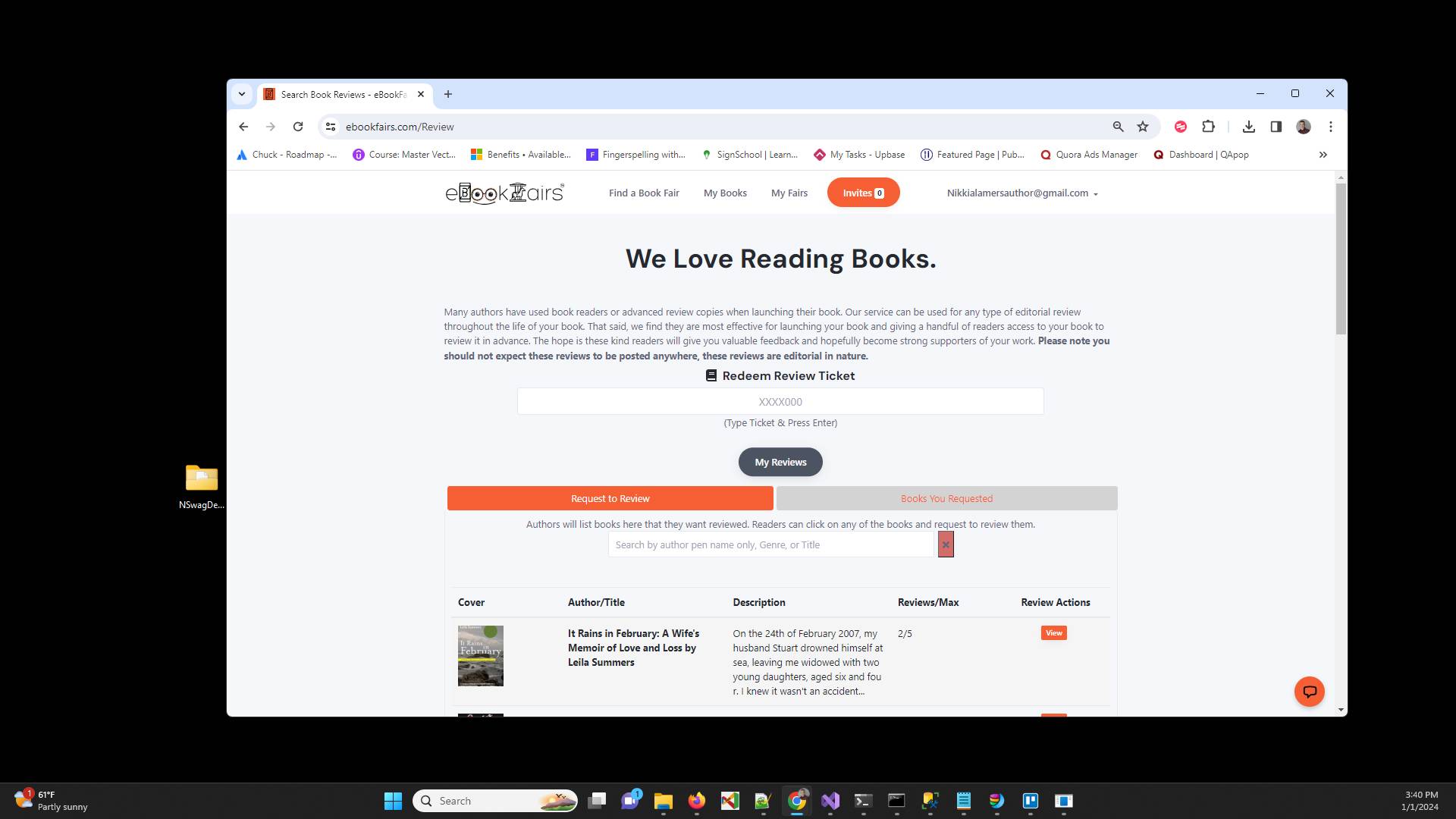
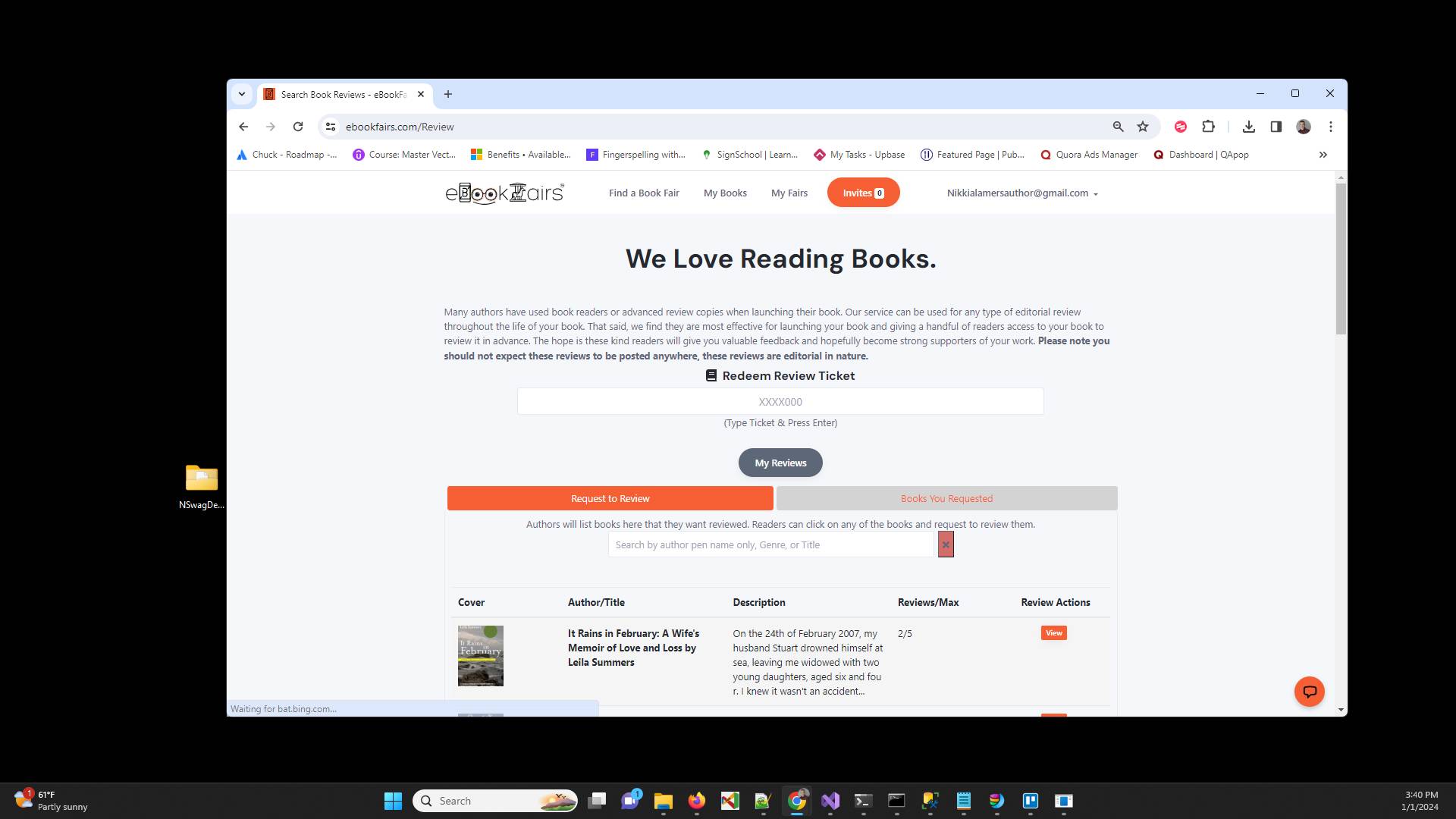
Click "My Reviews" to quickly get to your reviews. It is also possible there will be a dropdown shown here by book. Either way you can get to your reviews quickly by the button or dropdown at this location.
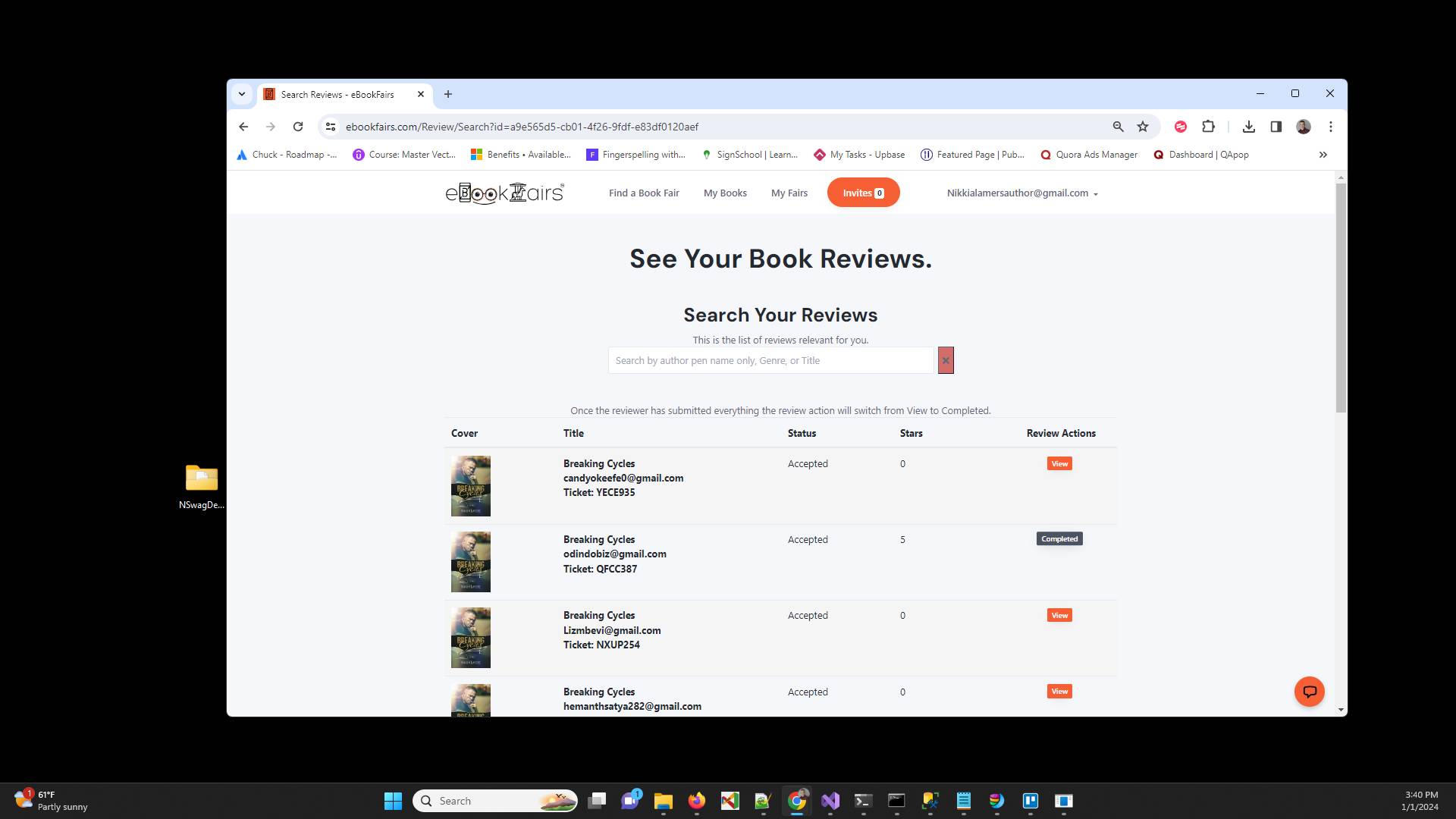
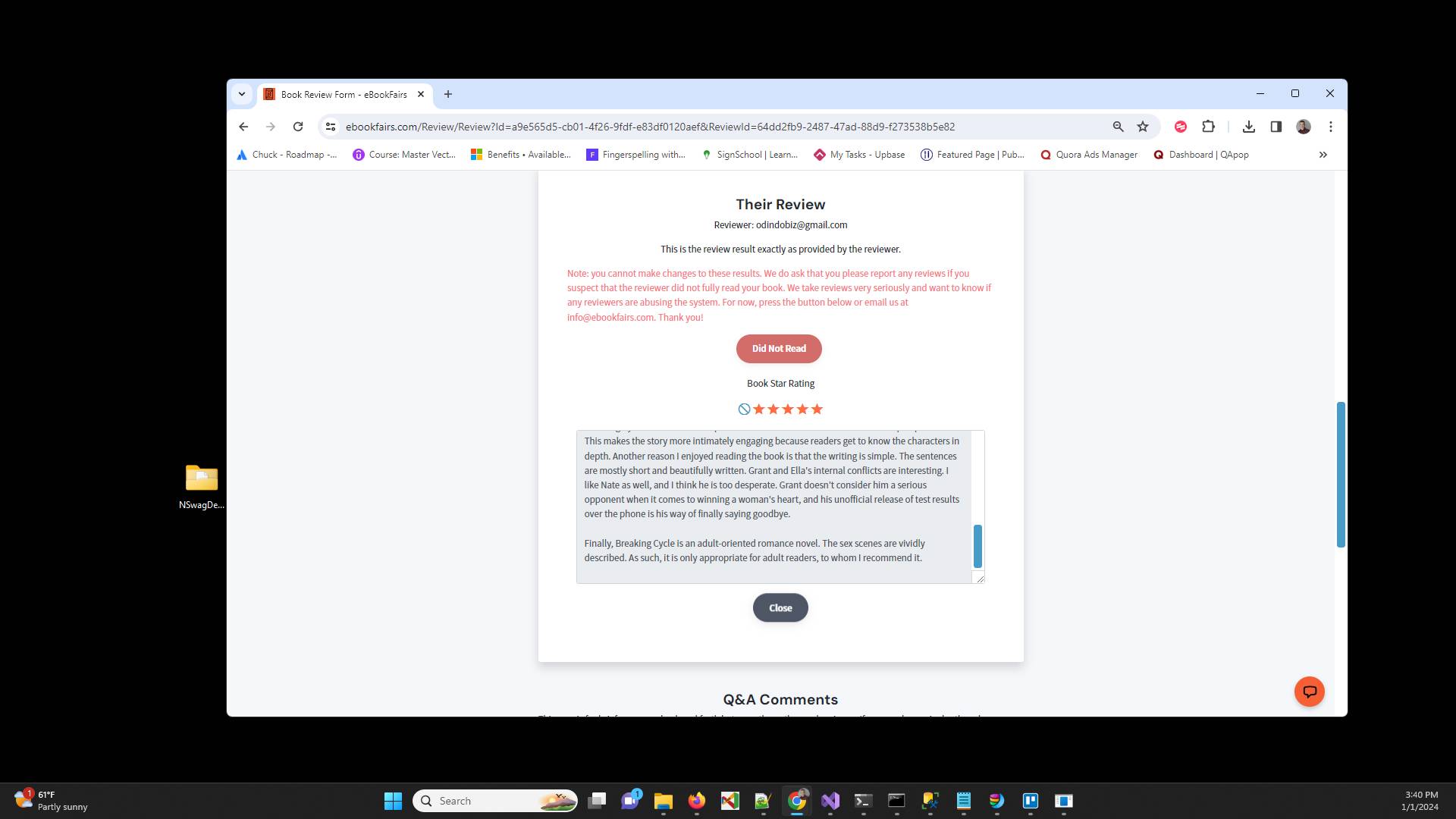
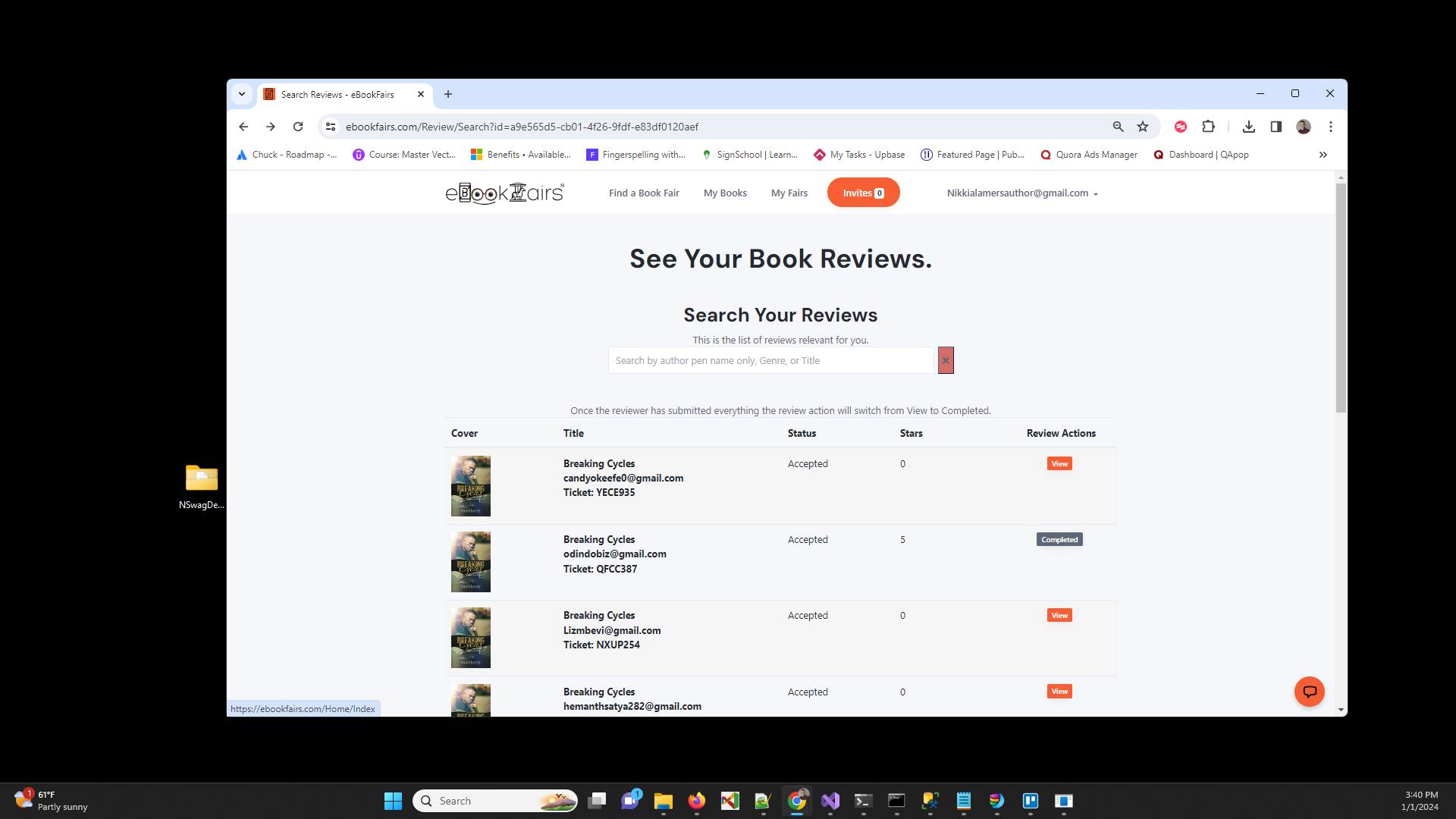
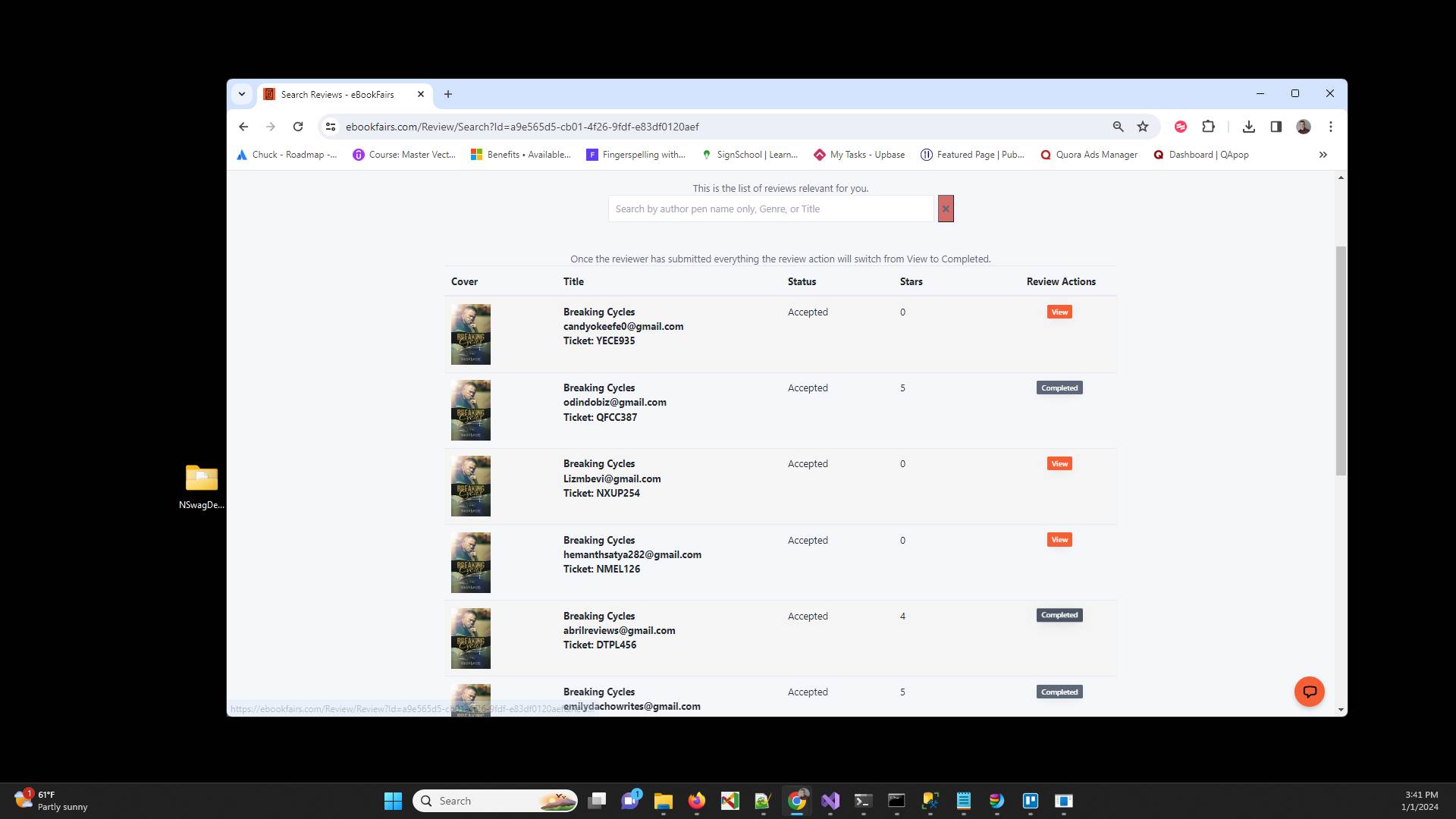
This will take you to your reviews. If a review has a Review Action of Completed that means the reviewer is done and you can click on that to see the review. You can also tell when they are done because the reviewer cannot give 0 stars. A value of 0 indicates they have not turned in their review.
Click "Close" to close this page.
Click "logo" to get back to the homepage so we can show you the second way to get to your reviews.
Click on Book Reviews.
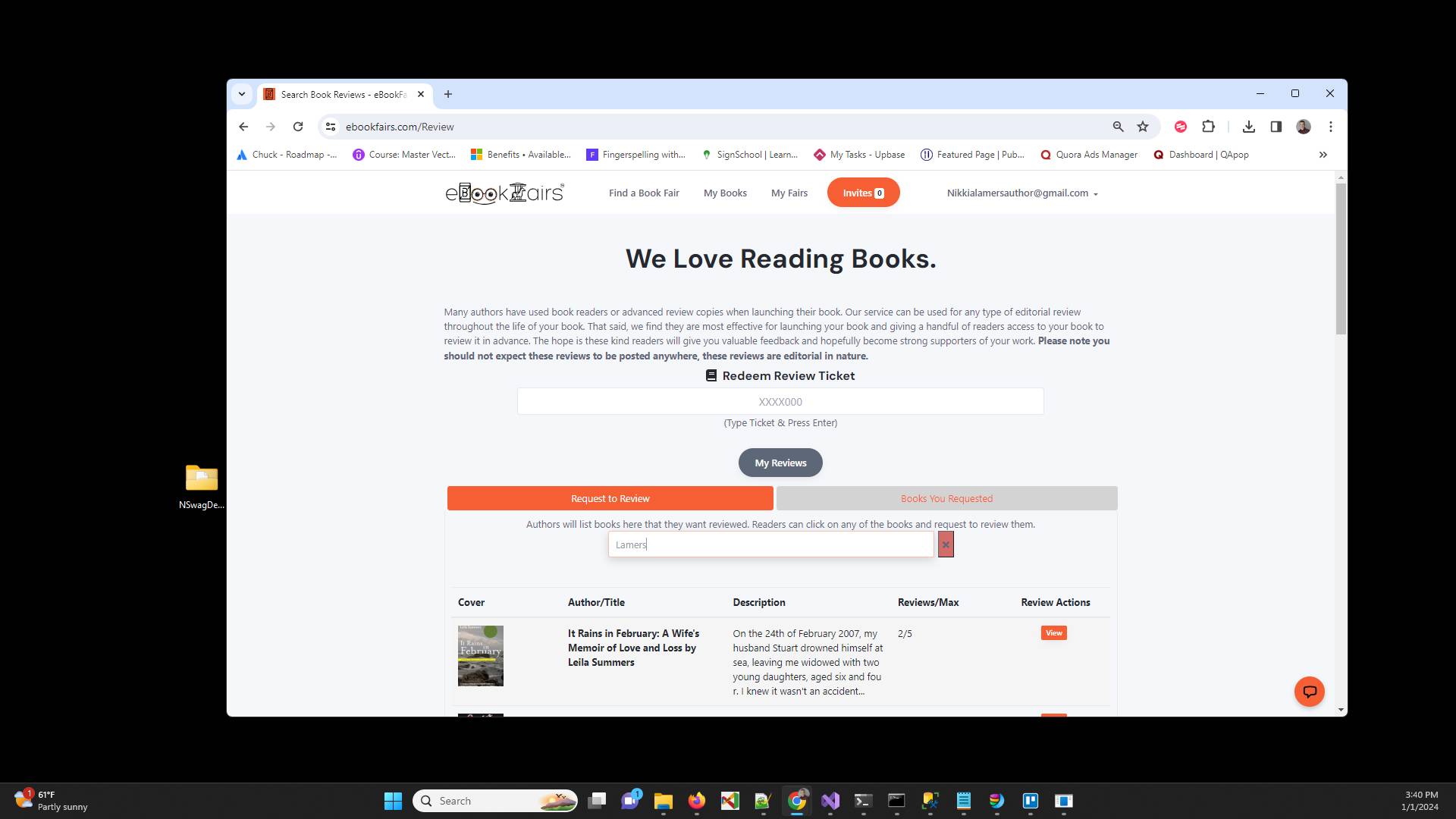
Click "Search by author pen name only, Genre, or Title"
Type "Lamers enter" of course you would type in your author or pen name here. We recommend just using the last name or first name if either is unique enough.
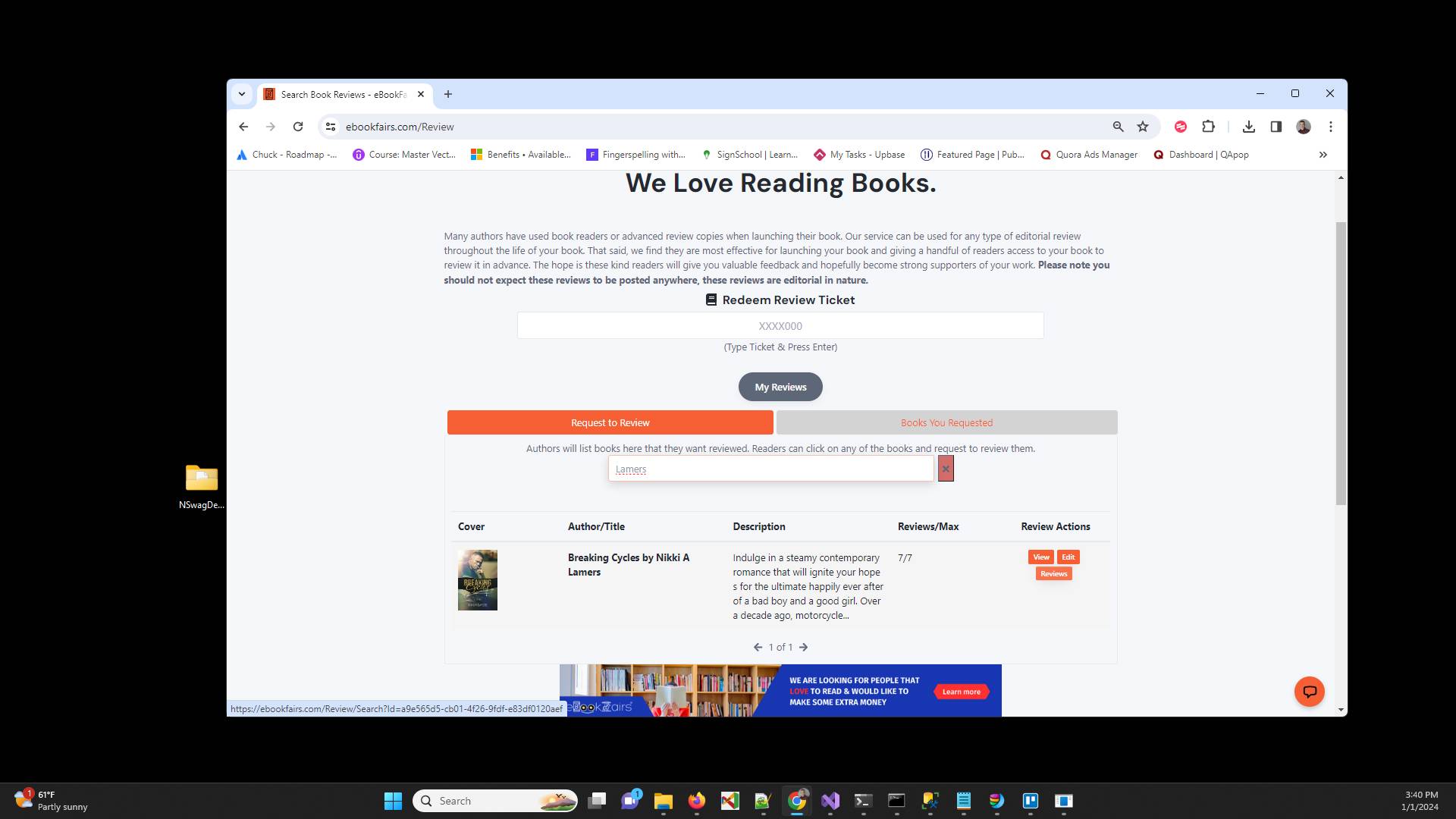
Click the "Reviews" button next to your book in the Review Actions column.
From here it is the same. A review with more than 0 stars and a status of Completed means that there is something for you to review. Once again the star value of 0 means the reader has not turned in their review yet.
Have ideas or feedback?
Add a comment to ask questions, clarify steps, or suggest improvements (compliments welcome, too!).
Processing...